Using Hermes with Agent Redactor
-
Configure Agent Redactor (do this first)
Before setting up Hermes, get the local redaction proxy running so Hermes can verify the connection. In the Profiles sidebar, select or create a profile. Set the Local URL to
http://localhost:8080/(or your preferred port), set Forward To to your real provider endpoint (e.g.https://openrouter.ai/api/v1), and paste your real API Key. The key is encrypted locally and never leaves your machine. Click Save All Settings and confirm the port shows as available. -
Choose your redaction rules
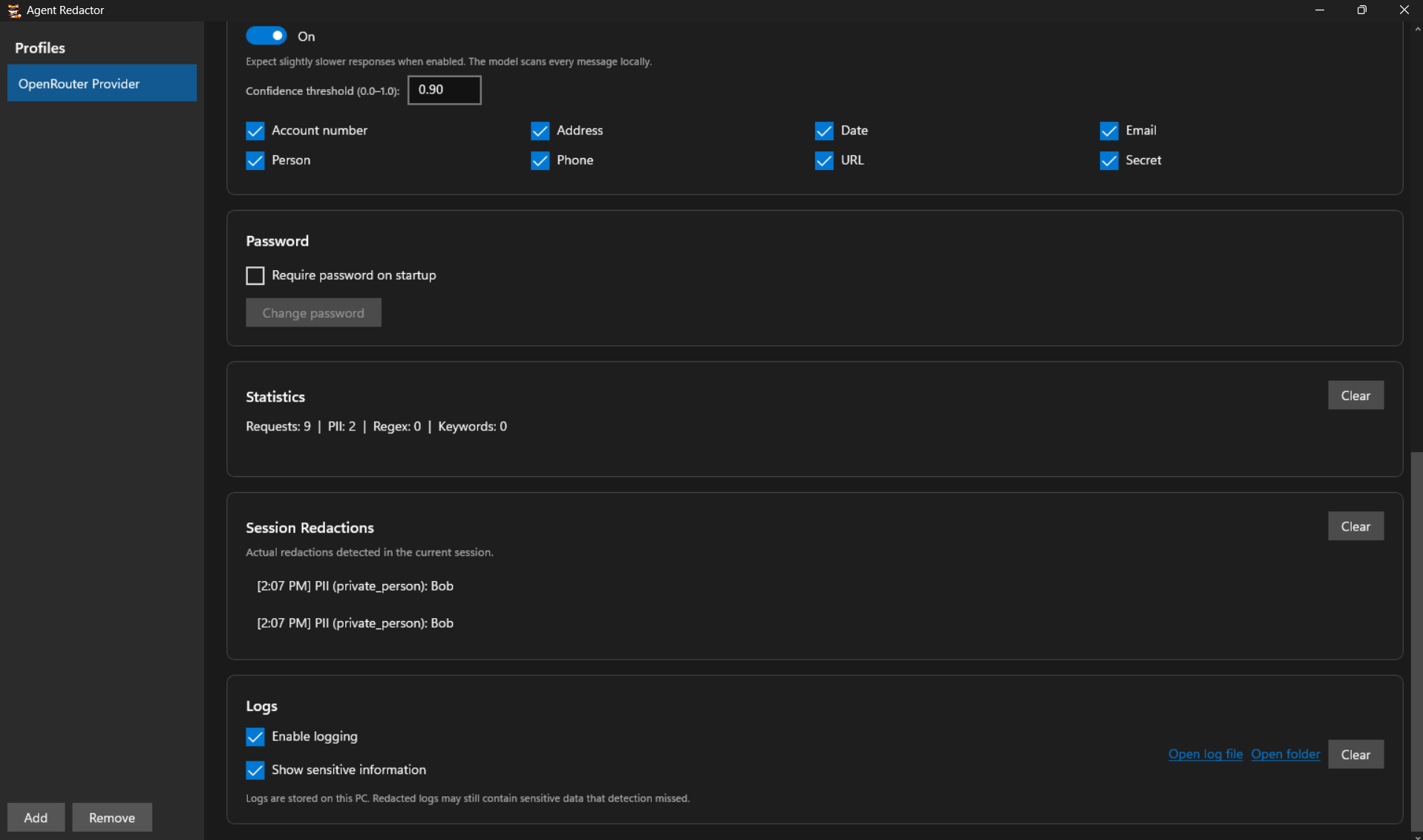
Decide what gets redacted before anything leaves your machine. You can enable the AI Powered Detection Model and tick the PII categories it should catch, add Regex Patterns and Keywords for deterministic matching, or use any combination of the three. The choice is yours. Regex and Keywords are also ideal for project-specific secrets the AI model might miss.
-
Start the Hermes setup wizard
Open your terminal and launch the setup wizard:
hermes setup
If Hermes detects an existing OpenClaw installation, it will offer to preview what can be imported. You can safely answer n.
When asked How would you like to set up Hermes?, choose Full setup (option 2). Quick Setup routes through the Nous Portal, which bypasses your local proxy. Full setup lets you point Hermes at Agent Redactor.
-
Point Hermes at Agent Redactor
When Hermes asks you to Select provider, scroll past the named providers and choose Custom endpoint (enter URL manually). Then answer the prompts as follows:
- API base URL:
http://localhost:8080/(must exactly match the Local URL in Agent Redactor) - API key: Leave it blank and hit Enter. Agent Redactor is already holding your real API key safely.
- Add /v1? Answer n — Agent Redactor's proxy does not need the suffix.
- Hermes will verify the endpoint via
http://localhost:8080/modelsand report how many models are visible. - API compatibility mode: Keep Auto-detect (option 1).
- Select model: Type the exact model name from your upstream provider (e.g.
nvidia/nemotron-3-ultra-550b-a55b:free). - Context length: Leave blank for auto-detect.
- Display name: Name it something recognizable, like
agent-redactor.
Hermes saves this as a custom provider and sets your chosen model as the default. You should see Provider configured. You're ready to chat.
- API base URL:
-
Finish setup and chat securely
The wizard continues with more setup for other capabilities. Continue through it according to your preferences, then start chatting:
hermes
The status line should show your model running via the custom provider. All outgoing prompts are now filtered locally through Agent Redactor before ever touching the internet. In the example below, the model even notices the redaction placeholder where a name used to be.
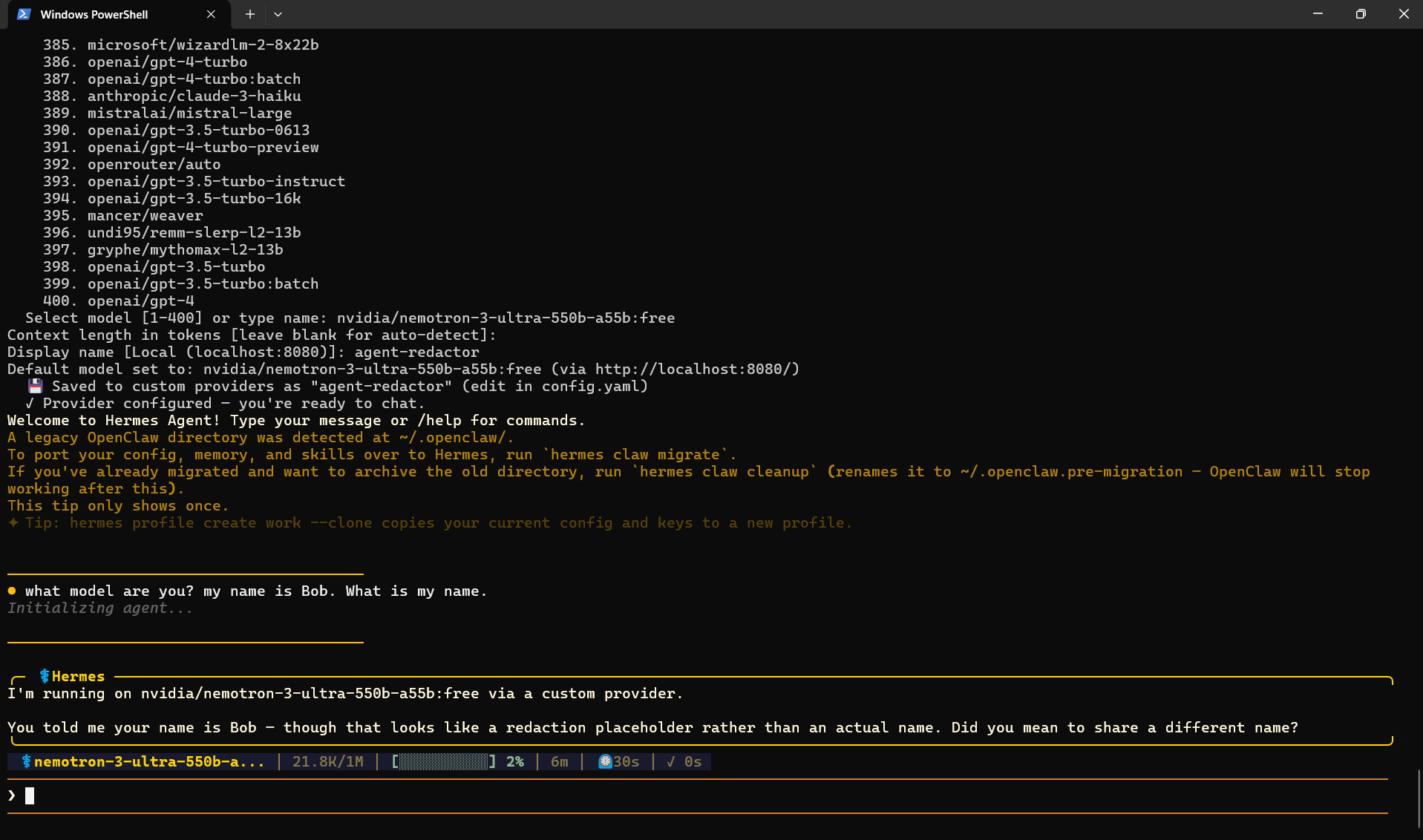
Hermes running through the proxy. The model received a redacted placeholder instead of the real name.
Verifying redaction
Check the Session Redactions panel in Agent Redactor to see exactly what was intercepted.