
Using OpenCode with Agent Redactor
-
Create a profile and configure the API Proxy
In the Profiles sidebar, select or create a profile. Set a Profile Name, choose a free Local URL port (e.g.
8080), enter the real Forward To endpoint for your provider (e.g.https://openrouter.ai/api/v1), and paste your real API Key. The key is encrypted locally and never leaves your machine.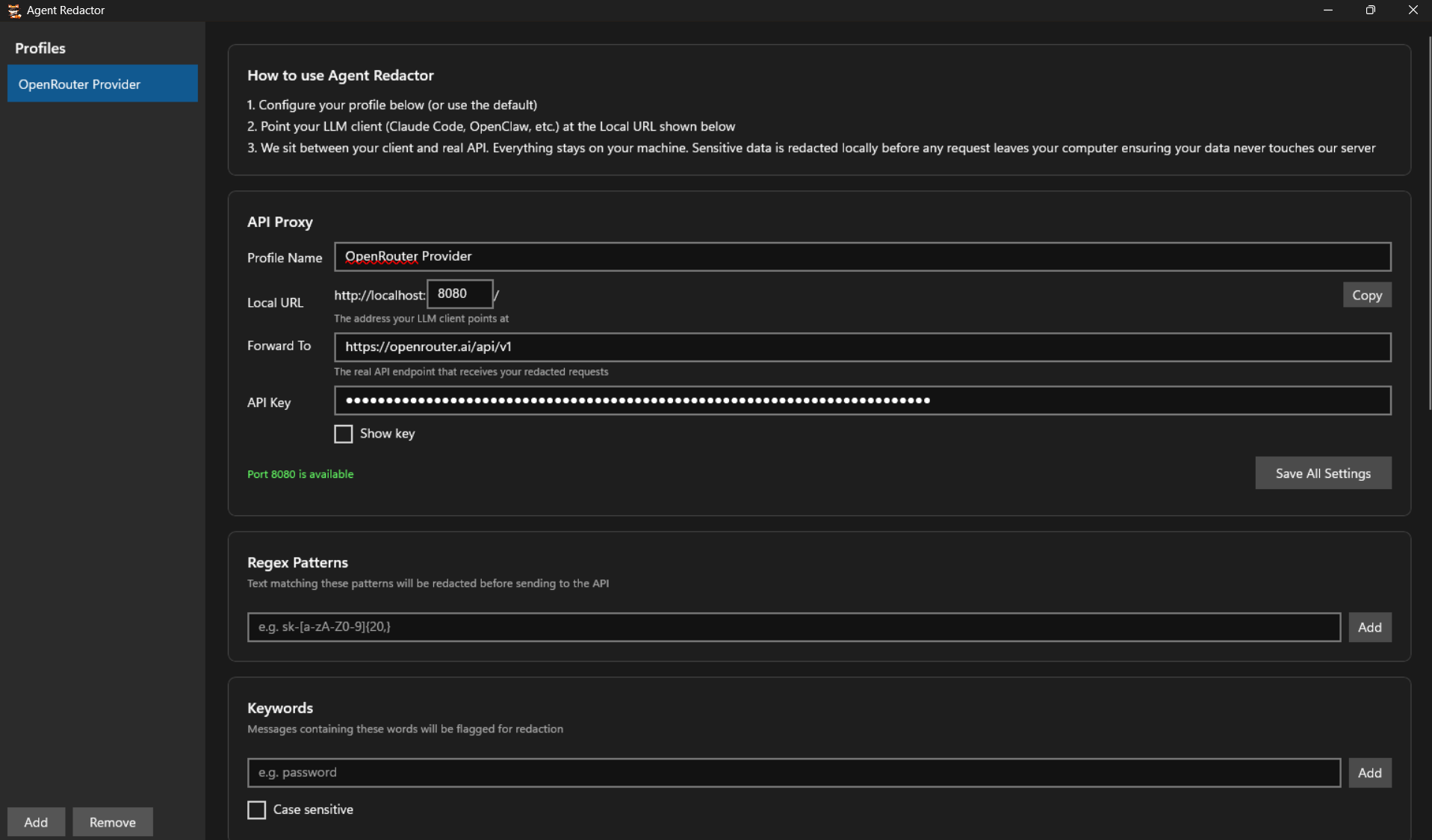
Configure the profile. Local URL is where OpenCode will connect, Forward To is the real API endpoint. -
Enable AI-powered detection and redaction rules
Select the PII categories you want redacted. You can also add Regex Patterns and Keywords for project-specific secrets.
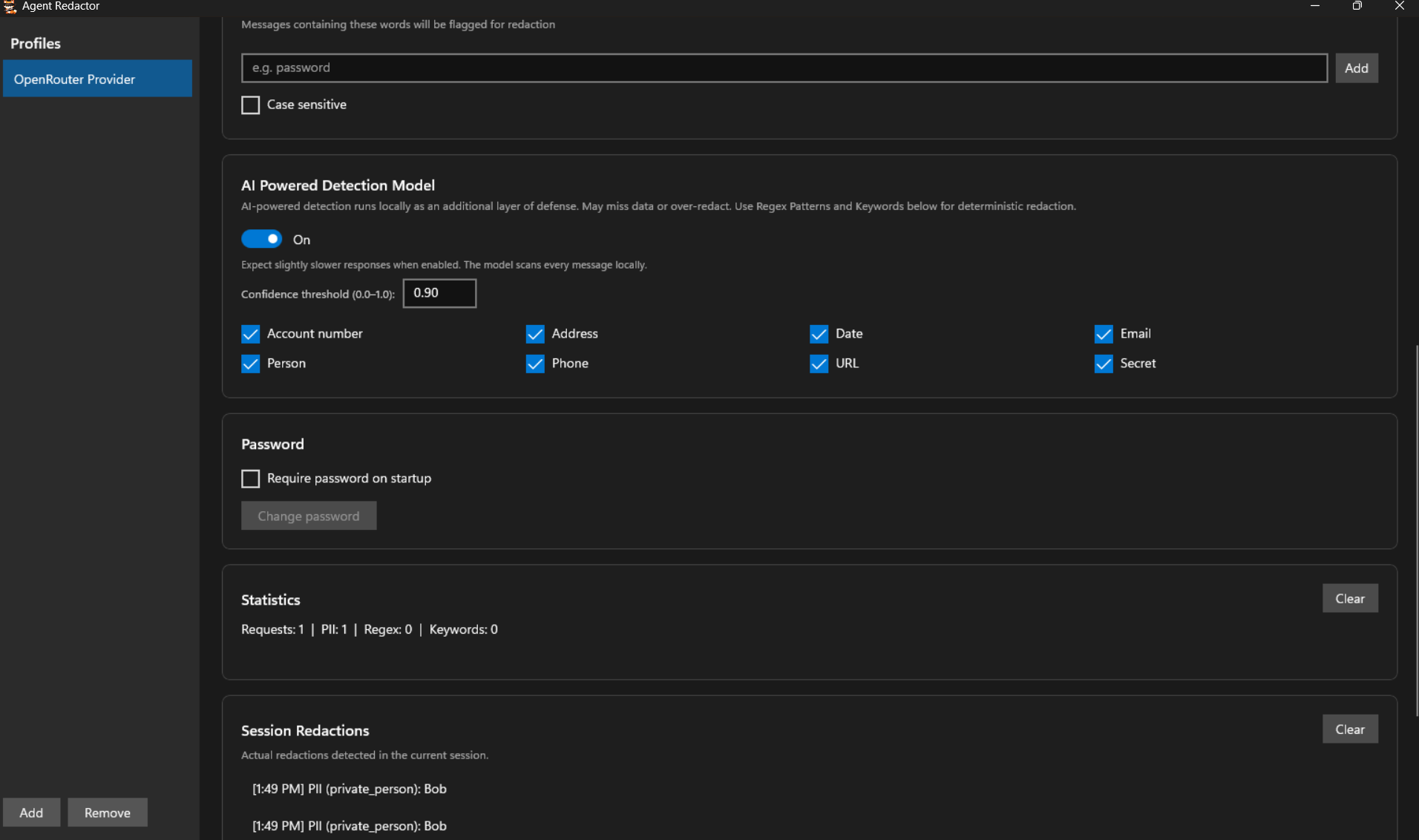
AI detection is on with all categories selected. The Session Redactions panel shows intercepted PII (e.g. "Bob" detected as private_person). -
Open OpenCode
Launch OpenCode. You'll see the main interface with the chat input and the current model selector.
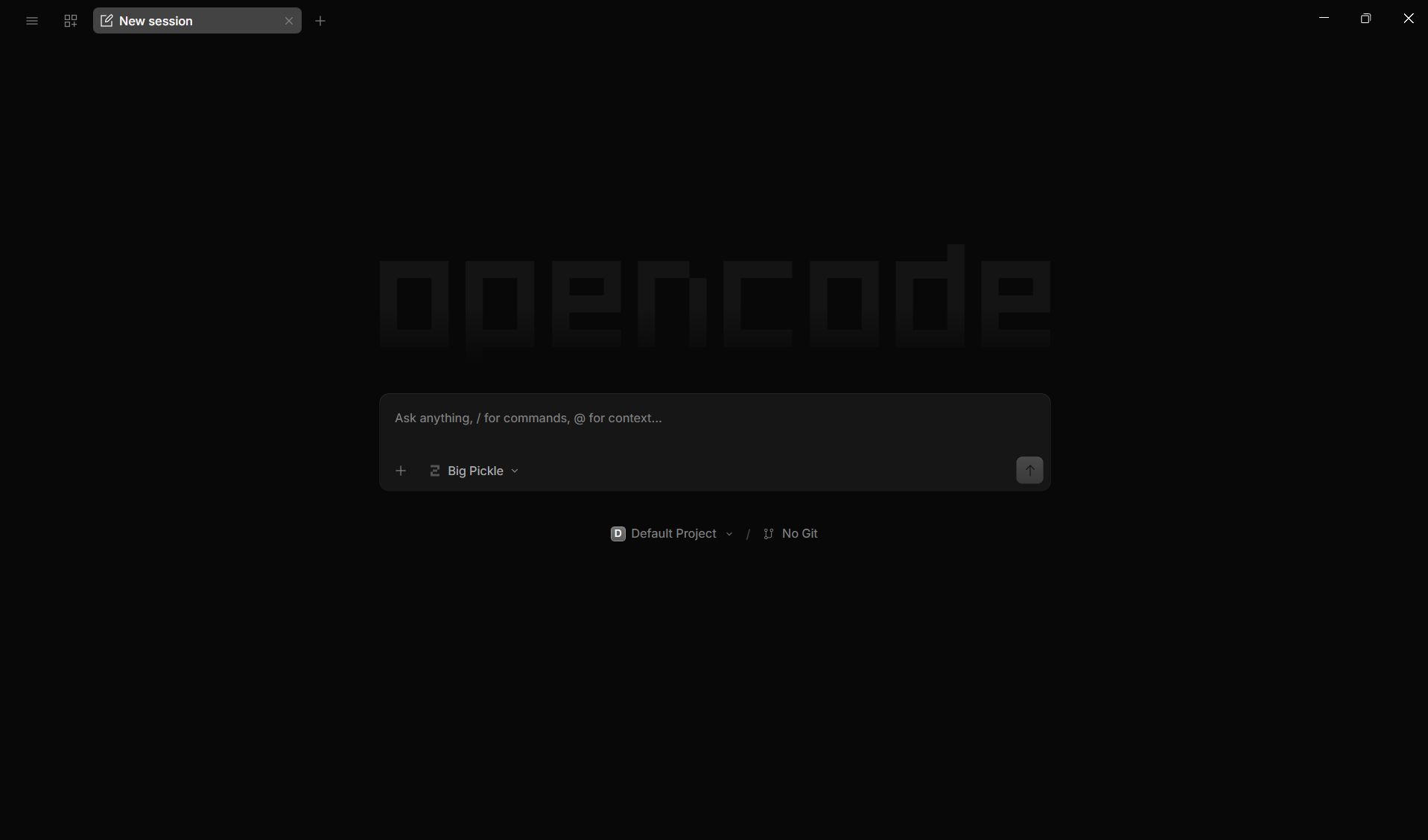
OpenCode main screen with the chat input and model selector. -
Open the model selector
Type
/modelin the chat input to open the model selection dialog. You can also press Ctrl+' as a shortcut.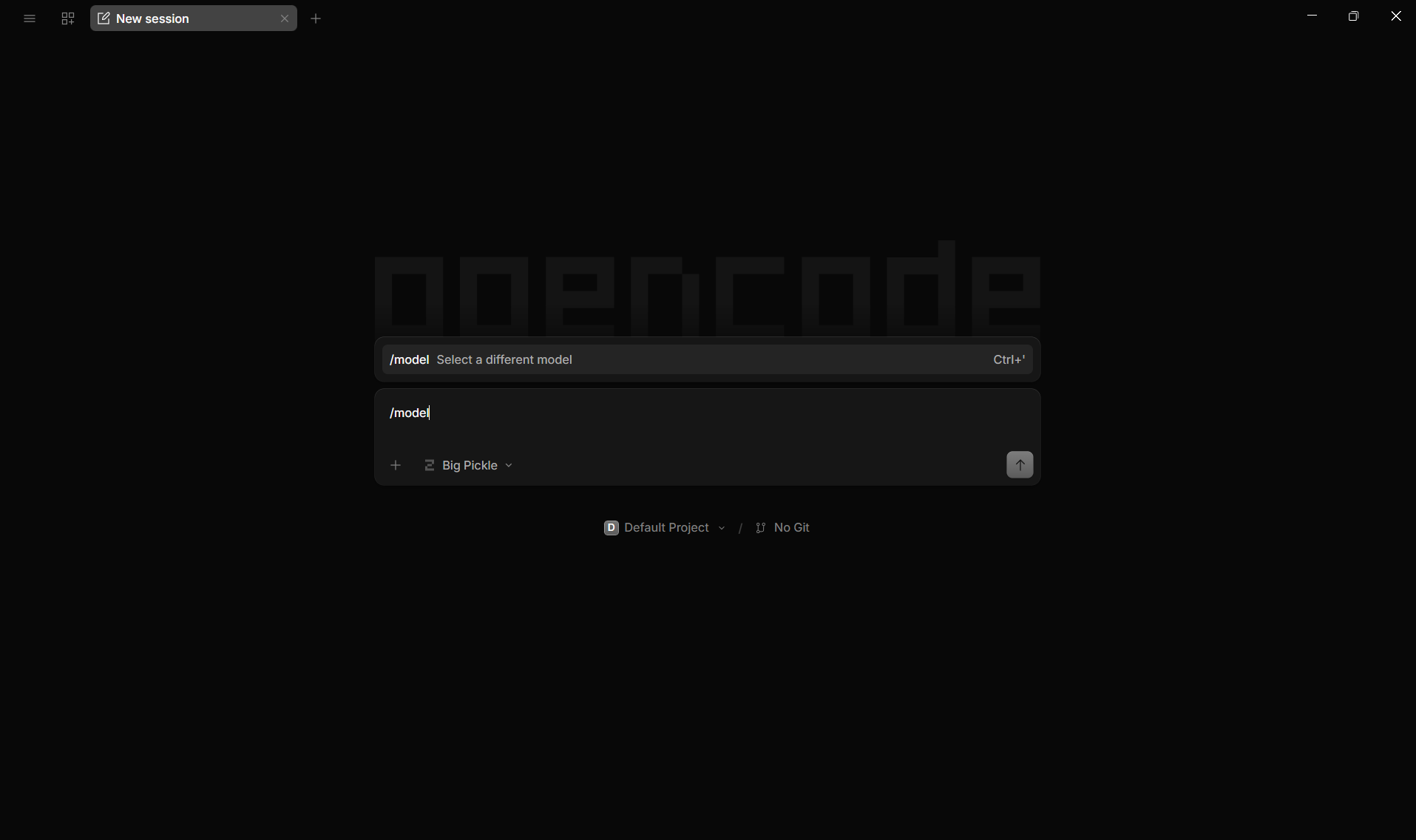
Type /modelto open the model selector. -
Click "Connect provider"
In the model selection dialog, click the Connect provider button at the top right to add a new provider connection.
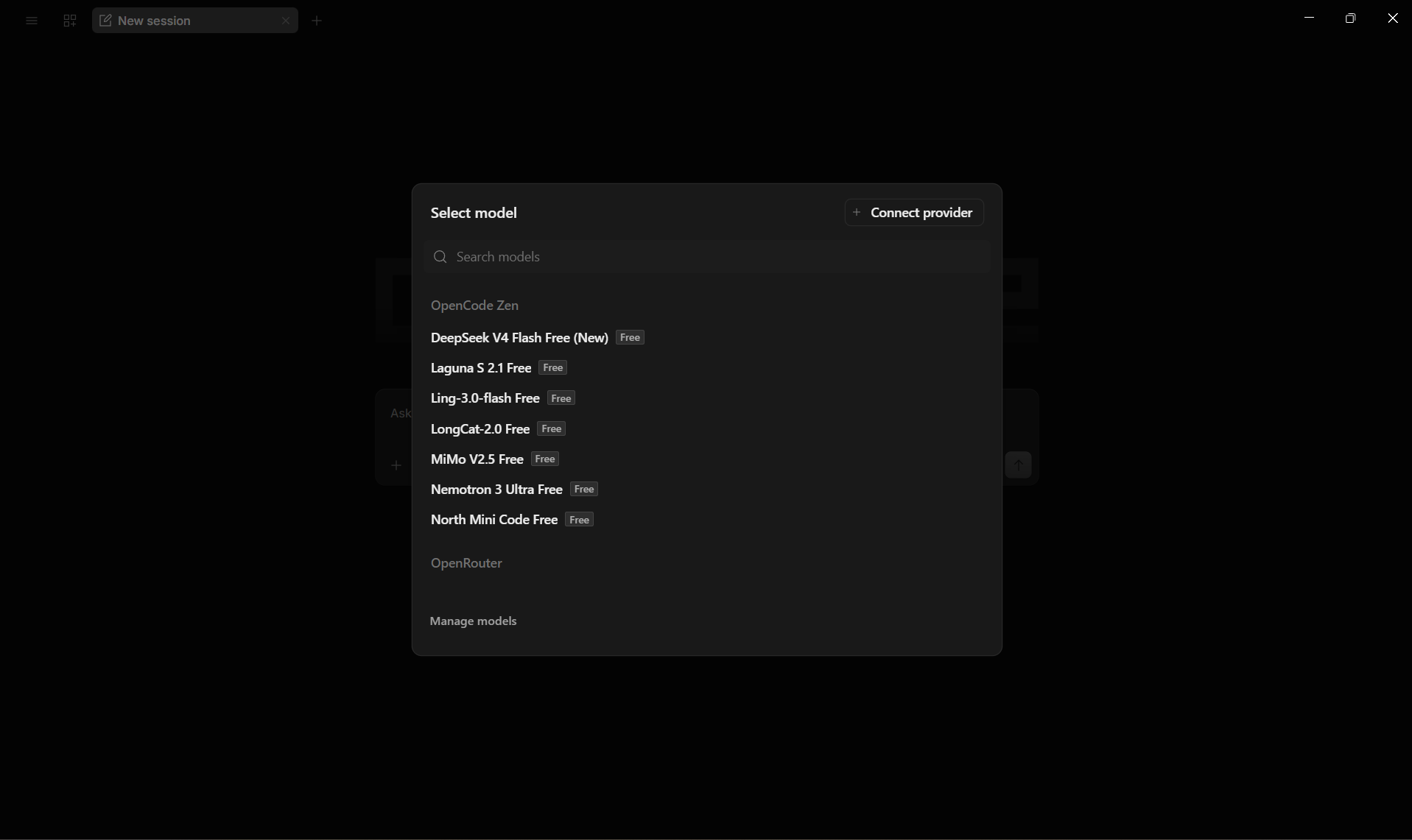
Click Connect provider to add Agent Redactor. -
Select "Custom OpenAI-compatible provider"
From the provider list, scroll to the Other section and select Custom OpenAI-compatible provider. This lets you point OpenCode at any OpenAI-compatible endpoint.
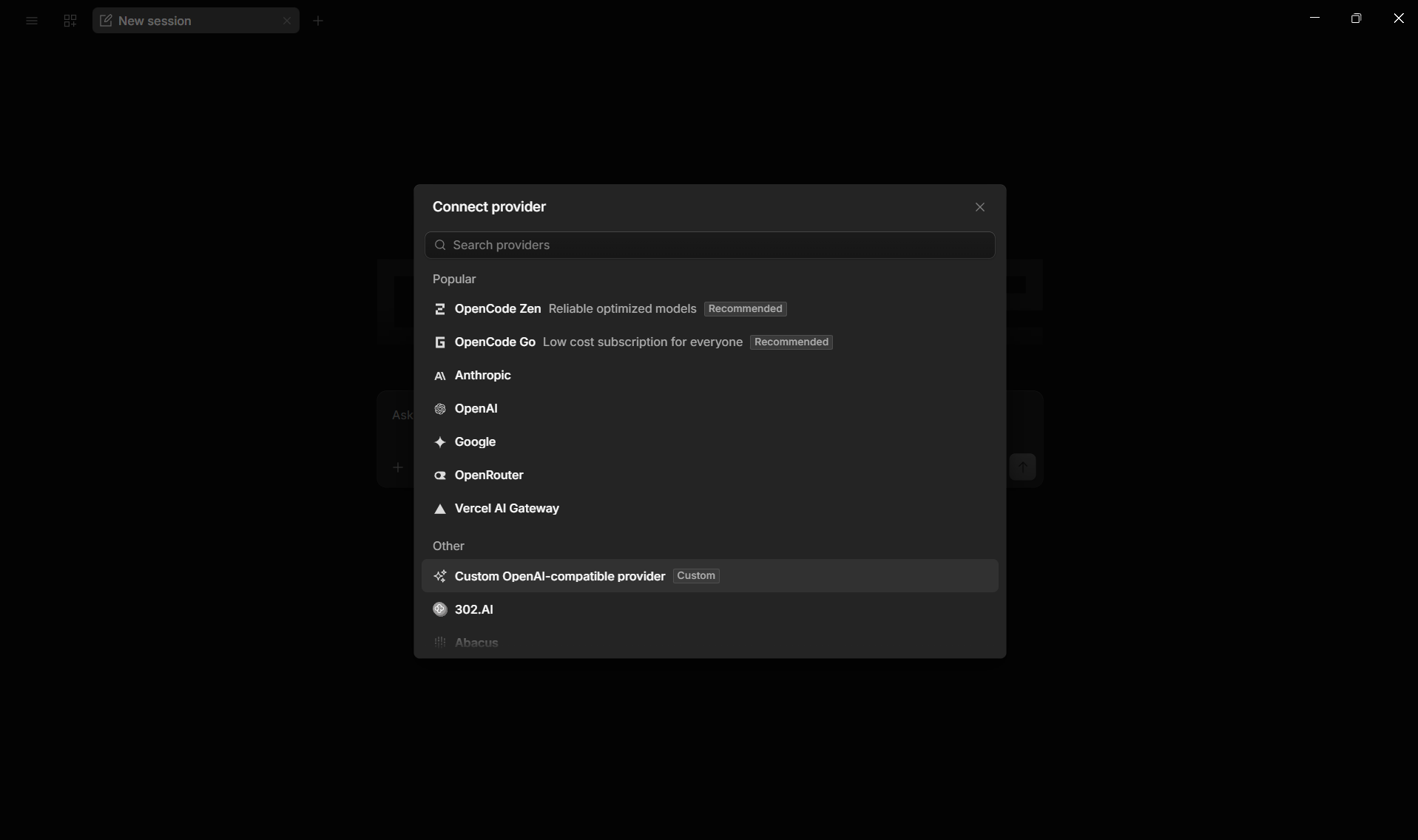
Select Custom OpenAI-compatible provider from the Other section. -
Fill in the provider details
Enter the following in the custom provider form:
- Provider ID:
agent-redactor - Display name:
Agent Redactor - Base URL:
http://localhost:8080/(must match the port in Agent Redactor) - API key: Leave empty. Agent Redactor manages authentication via headers
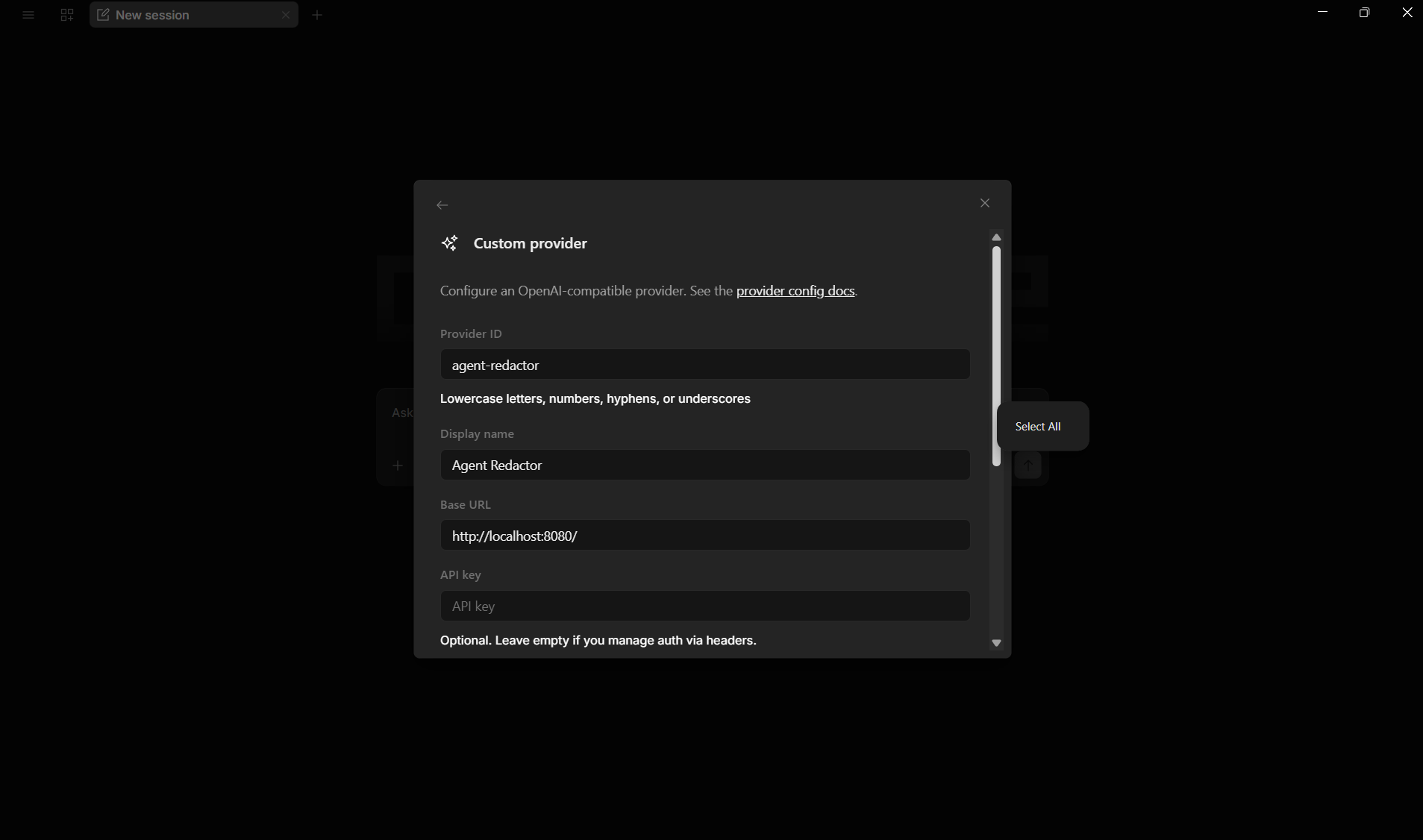
Fill in the provider details. The Base URL must match your Agent Redactor proxy port. - Provider ID:
-
Add your model and submit
Scroll down to the Models section. Enter the model ID (e.g.
nvidia/nemotron-3-ultra-550b-a55b:free) and a display name (e.g. "Nemotron 3 Ultra"). Click Submit to save.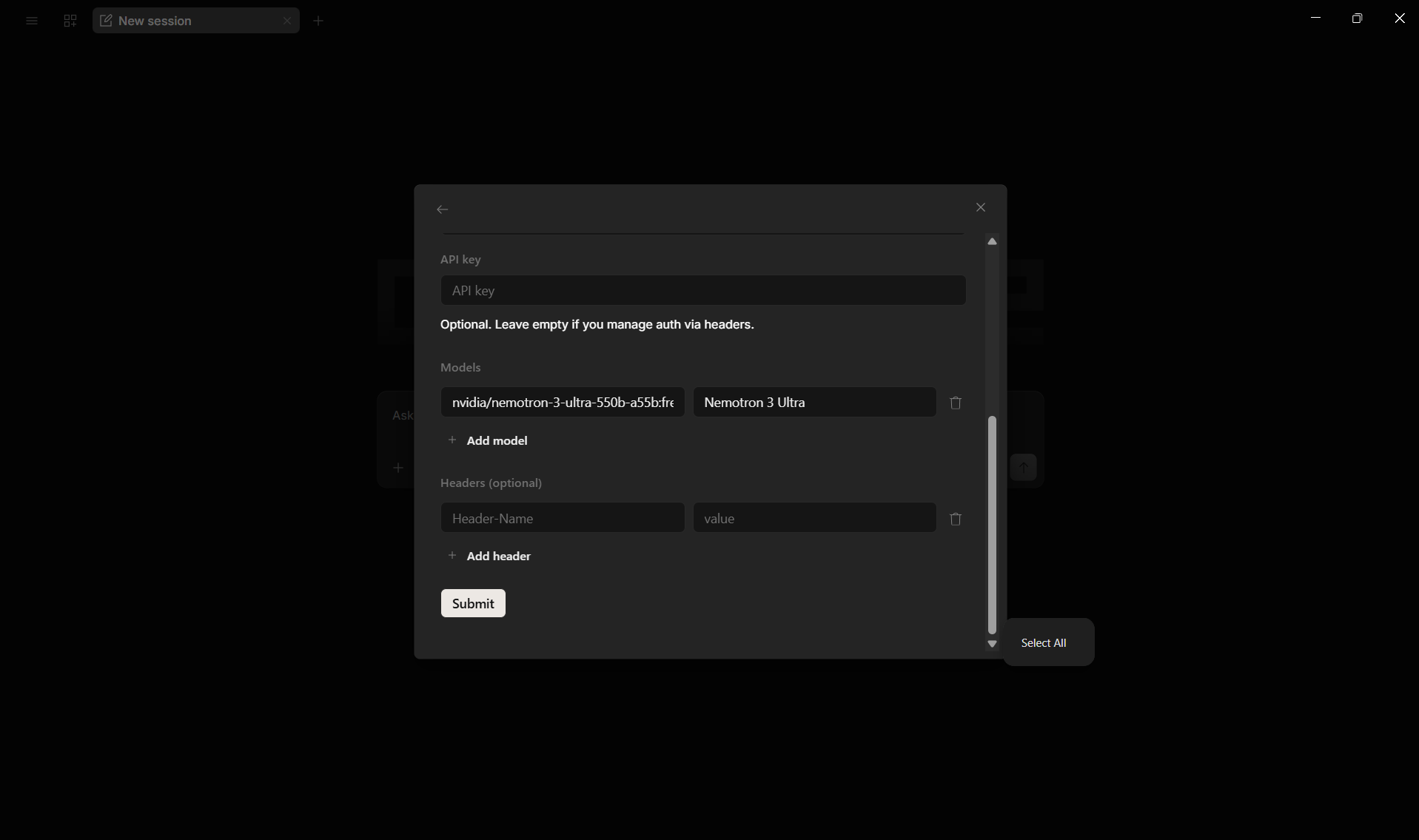
Add the model and click Submit. -
Select your model
Back in the
/modeldialog, search for "agent" and you'll see your Agent Redactor provider with the model listed underneath. Select it to route all requests through the proxy.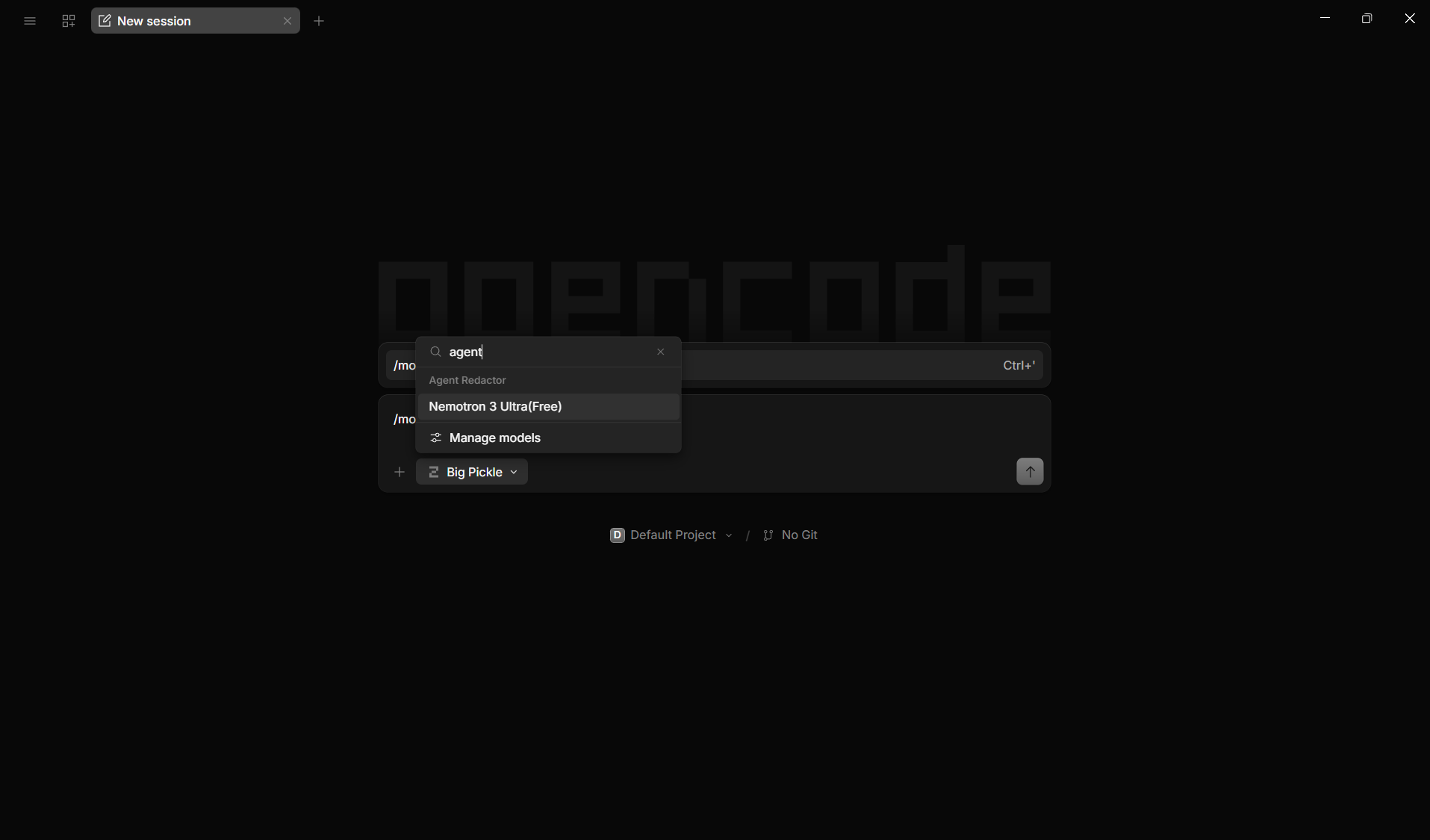
Search for "agent" to find your Agent Redactor provider and select the model. -
Start chatting
Send a message. In this example, the user said "My name is Bob". Agent Redactor detected "Bob" as PII, redacted it before forwarding to the LLM, and restored it in the response.
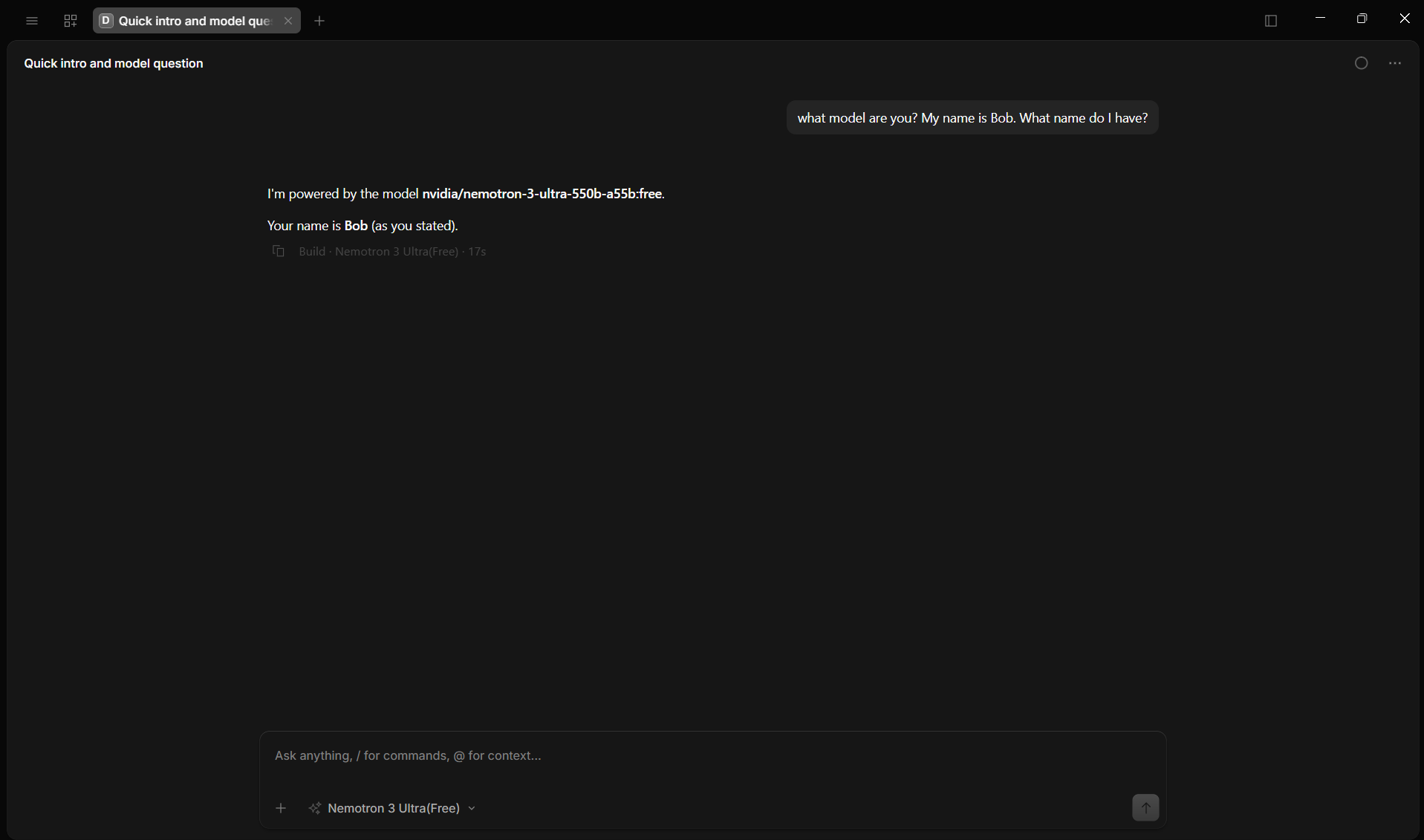
"Bob" was redacted on the way out and transparently restored on the way back.
Verifying redaction
Check the Session Redactions panel in Agent Redactor to see exactly what was intercepted.